Every drayage RFP on one board, from inbox to won
Each customer RFP becomes an opportunity with its lanes and due date. Assign an owner, fill buy rates, price the lanes, send the quote and record the result in one place.
Todo
Q1 import RFP
Northbay Foods
184 lanes · due Nov 14
In progress
Inland Empire lanes
Harbor Retail
42 lanes · due Nov 7
Savannah rail lanes
Eastline Imports
26 lanes · due Nov 9
Completed
Houston Q4
Gulfway Supply
18 lanes
Chicago ramp lanes
Lakeside Brands
31 lanes
From RFP email to priced bid
Open the opportunity
RFP emails in your connected Gmail inbox open as new opportunities on their own. Or create one and paste the customer’s email, type the lanes, or add up to 12 Excel, CSV, PDF, Word, email or image files for Bidi AI to read. Files you only want on record go under Attachments.
Fill buy rates
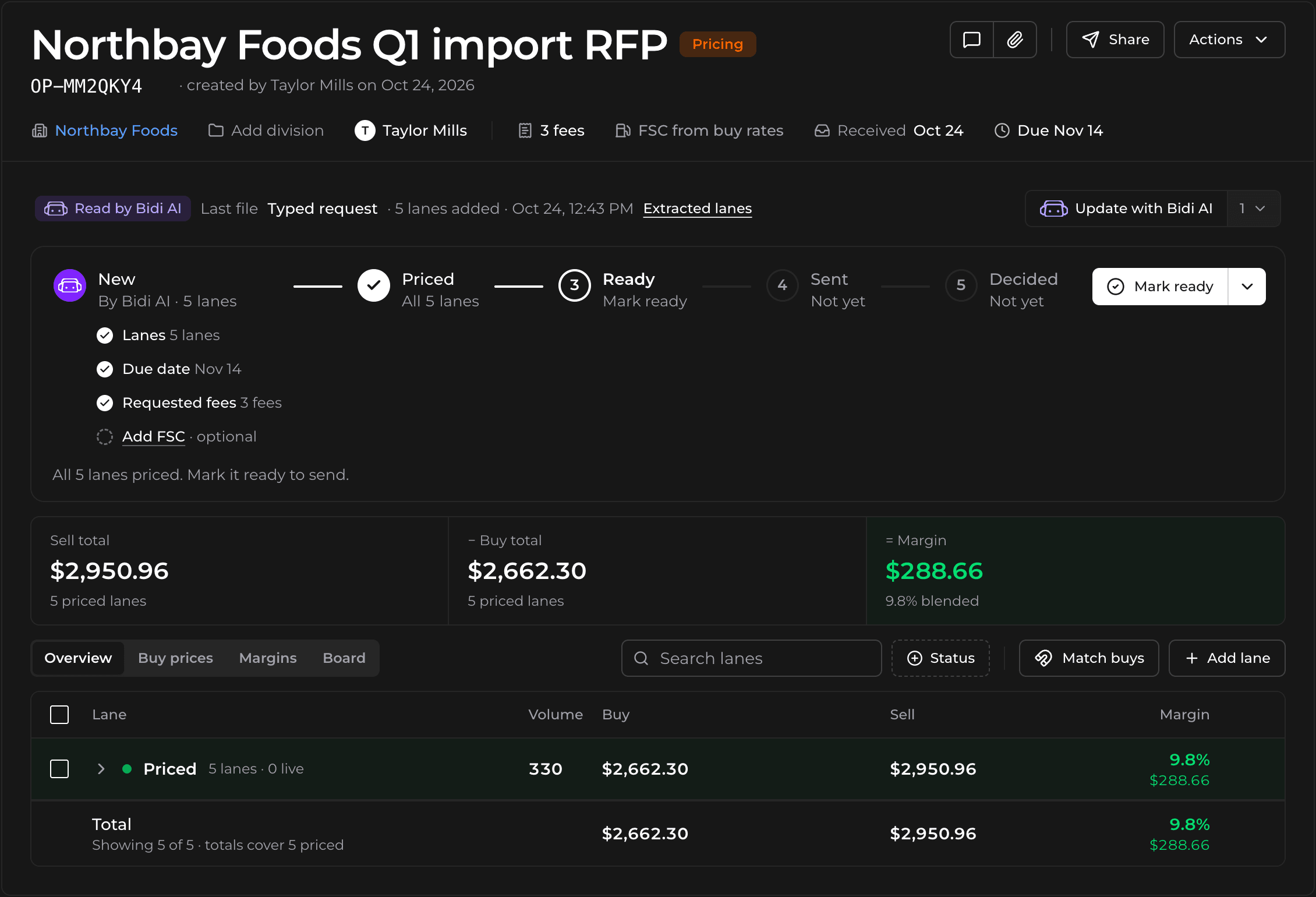
Match buys adds up to three of your carrier rates from the last year to each lane, matching by terminal or market first, then ZIP code, then city, and taking the cheapest. It runs on its own when Bidi AI adds lanes. Request rates for the lanes still missing one.
Price the lanes
Price lanes sets sell rates by margin or markup on each lane’s chosen buy rate, the cheapest unless you pick another. Open any lane to price it by hand.
Share and track
Mark the bid ready to lock its rates. Share sends your rates as a PDF and a CSV, as a reply in the customer’s email thread, a new email or a download. Then record won or lost, and take a won bid live.
See where every RFP stands
Switch between a table and a board. Cards move from Todo to In progress to Completed. Each bid’s status comes from what happened to it: New, Pricing, Ready, Sent, Won, Lost, Expired, Closed or Live. A bid still unsent after its due date shows Expired.
On the opportunity, the steps New, Priced, Ready, Sent and Decided show how far the bid has come, with a button for the next one.
Bids from email start unassigned and stand out on the board until someone clicks Assign to me. Filter by Everyone, Unassigned, Mine or a teammate, switch to By owner, drag a card to reassign it, and sort by newest, oldest, due date or unassigned first.
Quote the fees the customer asks for
Bidi AI reads the fees the customer wants priced from their Excel bid sheet, with any amount they already set, or copies the list from their last bid. While you price a lane, each requested fee shows the customer’s amount, and BidSource warns when a sell rate carries a fee they didn’t ask for.
Update the bid when the customer sends changes
When a revised file or a follow-up email arrives, Update with Bidi AI reads it and lists the new and changed lanes, plus the missing ones when you mark it as a full new lane list. Nothing changes until you apply the ones you want, and you can undo an applied batch.
Keep the customer thread with the bid
When an RFP arrives by email, later messages in the thread land in the opportunity’s conversation. Reply to the customer from there, and the reply goes out as a real email in the same Gmail thread.
Send rates back in the customer’s own bid sheet
When an RFP comes with an Excel bid sheet, Bidi AI notes which columns take your line haul, each fee and your volume. Share fills that sheet with your sell rates, leaves the rest of the file as it was, and lists any cell that goes out empty before you send.
Know which bids you won
Mark a bid Won, or Lost with an optional reason, whether or not you sent it from BidSource. The result carries to all of its sell rates, so Analytics can show your win rate by customer, carrier and market.
Works with the rest of BidSource
- AI email extractionHow Bidi AI reads lanes, volumes and due dates from RFP emails.
- Carrier rate requestsAsk carriers for the lanes you have no buy rate for yet.
- Pricing rulesPrice chassis, pre-pull, fuel and every other fee the same way on each bid.
- AnalyticsWin rate and margin by customer, carrier and market.